Quick tour
This five-minute tour walks the whole loop: capture → organize → board → back up. Each step links to the in-depth section if you want more.
1. Connect the browser extension
Morgue captures from the web through a small browser extension that talks to the app over a local connection.
- Install the Morgue browser extension (see The browser extension).
- With Morgue open, click the extension on any page. When it shows as connected, you're ready.
How it connects
The app runs a tiny local bridge on your own machine that the extension talks to. Nothing leaves your computer — see The browser extension for details and troubleshooting.
2. Capture something
- Find a site you like.
- Click the extension and choose a capture mode — visible screen, full page, or a region you draw. See Capture modes.
- The capture lands in Morgue with its fonts and color palette already attached. See Auto-extracted fonts & colors.
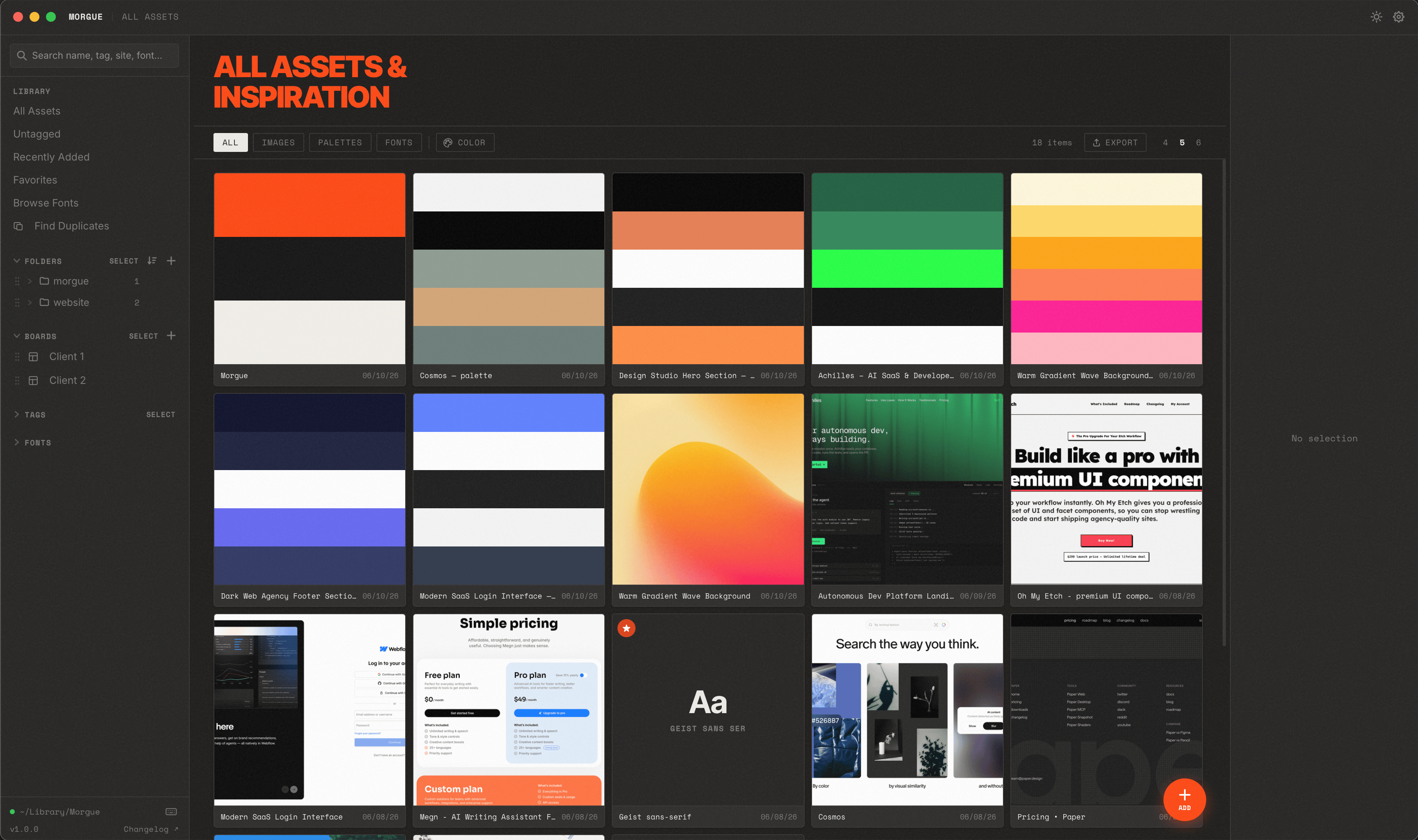
Switch to Morgue and you'll see your new item in the grid.
3. Organize it
- Tag it with something like
#heroor#pricingso you can filter later — see Tags. - Drop it into a folder (e.g. a client or project) — see Folders.
- Later, find it instantly by name, site, font, or even color — see Search & color search.
4. Build a board
- In the sidebar, create a Board.
- Drag assets onto the infinite canvas, add text and notes, and connect related items with arrows — see Connecting items.
- Need a head start? Apply a template.
5. Back it up
Because everything is local, you're in charge of backups — and it's one click.
- Open Settings → Library → Export.
- Choose where to save the
.zip. It contains everything: assets, palettes, folders, tags, and boards.
See Exporting your library. To restore later — even on a new Mac — use Importing a backup, which de-duplicates automatically so re-importing never piles up copies.
Where to go next
- Capture power-user details → Capturing
- Keep a big library tidy → Organizing
- Get fluent on boards → Boards
- Every shortcut → Keyboard shortcuts